On newer Galaxy phones, open Gallery, select the photos, tap More (⋮) and choose Move to private album. On older Galaxy phones, use Move to Secure Folder from the same menu. For photos that stay encrypted under their own lock on any Galaxy, use a vault app like Lockar.
First, check your One UI version
Samsung's newest hiding feature, Private album, needs One UI 8.5. Samsung started rolling it out in May 2026 to Galaxy phones launched in 2023 or later, like the Galaxy S23 and newer and recent A-series models. 2022 phones such as the Galaxy S22 aren't expected to get it.
To check, go to Settings › About phone › Software information and look at One UI version. Then pick the method that fits:
| Method | Works on | What opens it | Main limit |
|---|---|---|---|
| Private album | One UI 8.5 and later | Your fingerprint or screen lock | Anyone who knows your phone PIN can open it |
| Hide albums | Any Galaxy | Nothing, it isn't locked | Only hides albums from the Gallery's Albums tab |
| Secure Folder | Most Galaxy phones | Its own PIN, pattern or password | No backups; lost if the folder is removed |
| Google Photos Locked Folder | Any Galaxy with Google Photos | Your screen lock | Same lock as your phone |
| Lockar (encrypted vault) | Any Galaxy | Lockar's own pattern | Lose the pattern and 12 words, and the photos can't be recovered |
1. Private album (One UI 8.5 and later)
Private album is built into the Samsung Gallery app. Samsung says photos moved there are hidden from the main Gallery view and from other apps that access your photos. Screenshots are blocked inside it.
Set it up
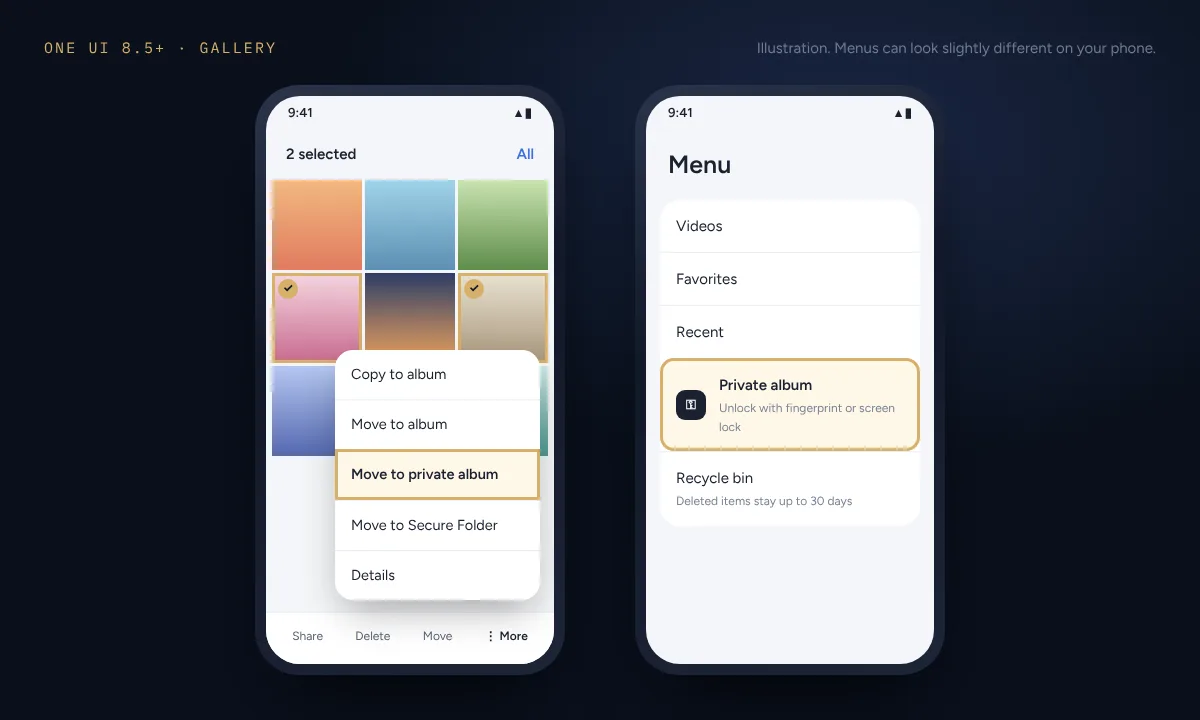
- Open Gallery and tap the Menu button (three lines) at the bottom right.
- Tap Private album and follow the instructions on the screen.
- If your phone has no screen lock yet, choose one under Lock screen, pick a notification style and tap Done.
Move photos into it
- In Gallery, open the Pictures or Albums tab and select the photos or videos.
- Tap More (⋮), then Move to private album, and tap Move.
To see them again, open Gallery › Menu › Private album and unlock with your fingerprint or screen lock. From there you can share, delete or move items back out.
The catch: Private album uses the same lock as your phone. If a partner, child or friend knows your PIN, they can open it too.
2. Hide albums in the Gallery
Every Galaxy phone can hide whole albums from the Gallery app. It's quick, but it's a tidy-up tool, not a privacy tool.
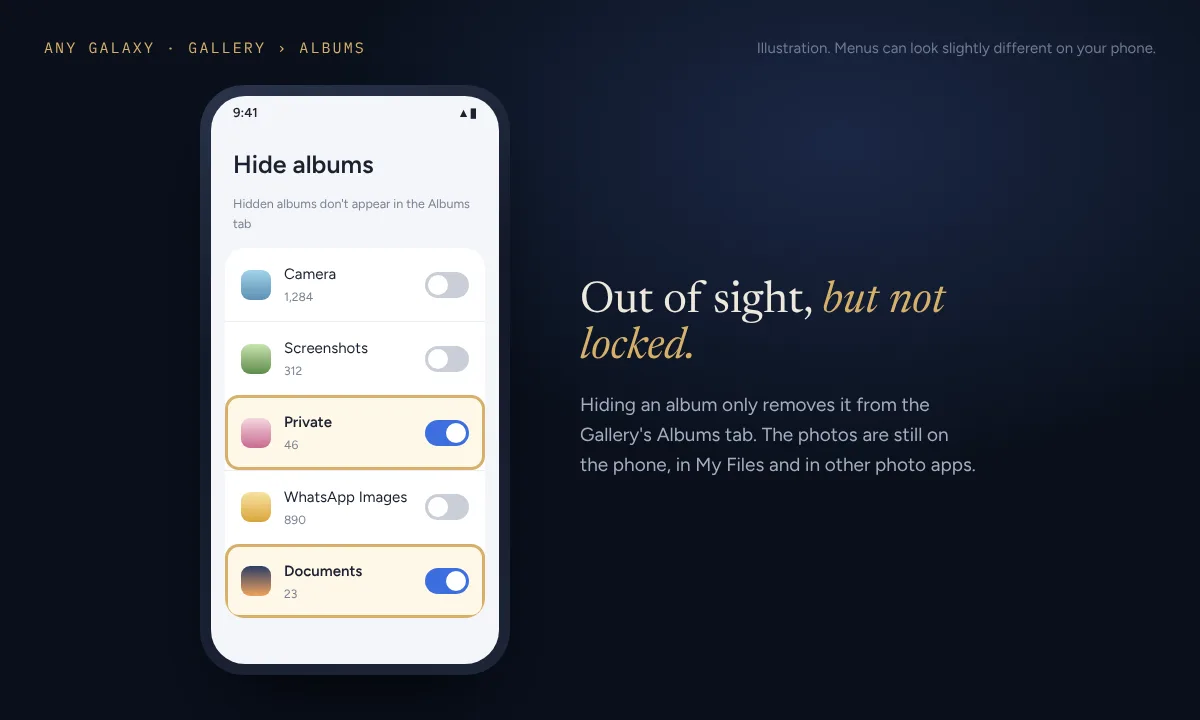
- Open Gallery and tap Albums.
- Tap View all, then the three-dot menu.
- Tap Hide albums and turn on the switch for each album you want to hide.
To unhide, go back to the same screen and turn the switch off.
The catch: nothing is locked. The photos stay on the phone, and they still show up in My Files, Google Photos and any other app that can see your pictures. Don't rely on this for anything sensitive.
3. Secure Folder
Secure Folder is a separate, locked space on your Galaxy with its own Gallery, Camera and file apps. Its biggest advantage over Private album is a separate lock, so knowing your phone PIN isn't enough to get in. It also works on older phones like the Galaxy S22.
- Go to Settings › Security and privacy › More security settings › Secure Folder.
- Tap Continue, sign in to your Samsung account if asked, and choose a PIN, pattern or password. Make it different from your screen lock.
- Turn on Reset with Samsung account when you're asked. Without it, there's no way back in if you forget the lock.
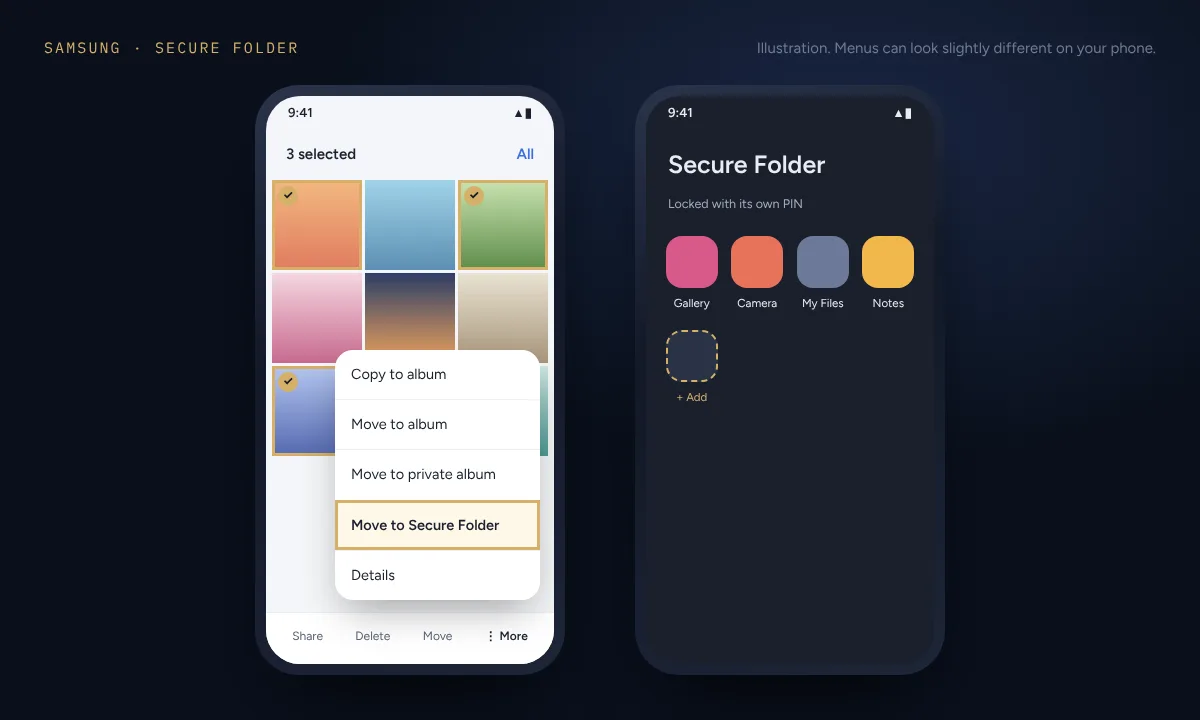
- In Gallery, select the photos, tap More (⋮) and choose Move to Secure Folder.
To view them, open Secure Folder, unlock it and open the Gallery inside. You can also hide Secure Folder's own icon by turning off Add Secure Folder to Apps screen in its settings.
The catch: Samsung says Secure Folder no longer supports backups. You can transfer it to a new Galaxy with Smart Switch, but if the folder is removed or the phone is lost, the photos inside go with it.
4. Google Photos Locked Folder
If you use Google Photos on your Galaxy, its Locked Folder works there too. Select photos, tap Add to, then Move to Locked Folder. It opens with your phone's screen lock, and you can turn on backup so items are kept in your Google account. For the full steps, see our guide to hiding photos on Android.
5. An encrypted vault: Lockar
All the built-in options above are a locked door in front of ordinary photo files. That's enough for most situations. But if someone knows your phone PIN, or you're on a Galaxy without Private album, you need something with its own lock that also protects the files themselves.
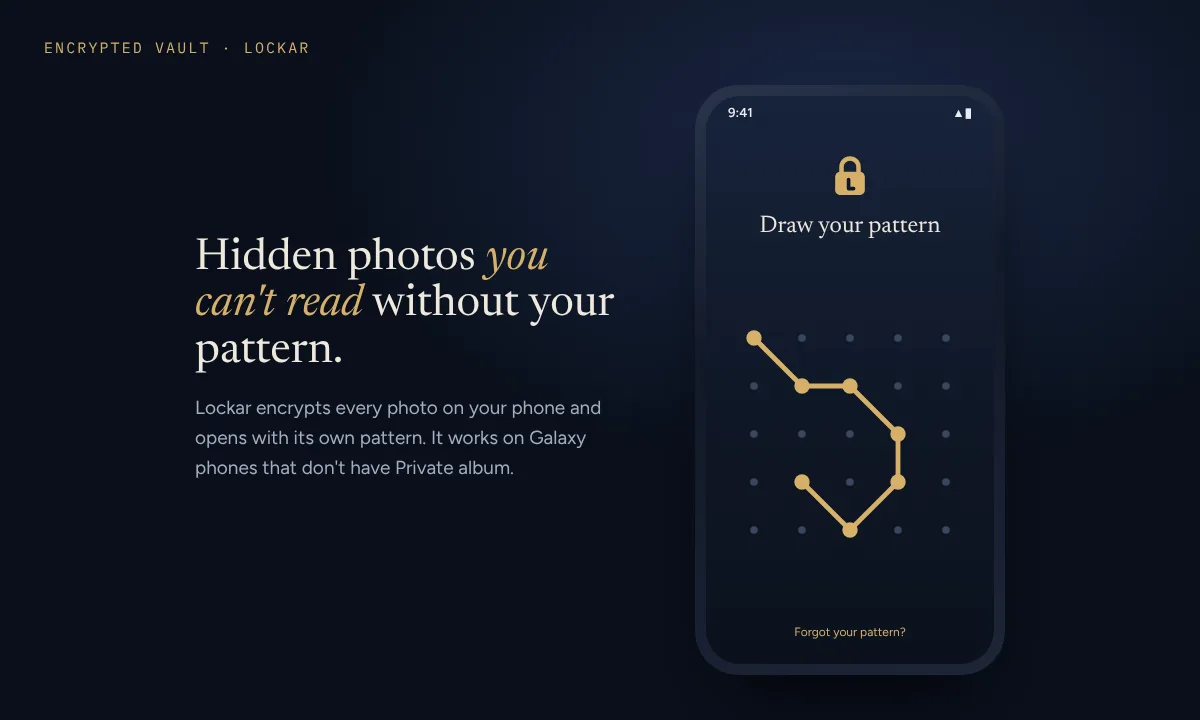
Lockar is a private photo vault built for Android. It encrypts every photo, video and file with AES-256 before saving it, so even someone who copies the phone's storage only finds scrambled data. It opens with a pattern you draw on a 5×5 grid, completely separate from your screen lock. There's no account, no ads and no tracking. It works on Galaxy phones old and new, including models that won't get One UI 8.5.
- Install Lockar and draw your pattern.
- Write down the 12 recovery words it shows you. They're the only way back in if you forget the pattern.
- Tap +, choose Photos & videos from gallery and select what to hide.
- When asked, remove the originals from your Gallery.
Unlike Secure Folder, Lockar can save your whole vault as one encrypted backup file, for example to Google Drive, and restore it on a new phone with your 12 words. It also has a private camera that saves photos straight into the vault, so they never touch your Gallery. Lockar is free for up to 50 items. Join the Android beta.
Before you hide anything, clear these copies
Moving or deleting a photo doesn't always remove every copy. Samsung's Gallery keeps deleted items in its Recycle bin for up to 30 days, and Google Photos or OneDrive may have backed the photo up already. Empty the recycle bin and check your cloud accounts.
Which one should you use?
- You just want photos out of the main Gallery and nobody else knows your PIN: Private album, or Locked Folder on older phones.
- Someone else knows your phone PIN: Secure Folder with a different lock, or Lockar.
- You want the photos encrypted and backed up safely: Lockar.
- You're just tidying up screenshots or work photos: Hide albums is fine.
Common questions
Why don't I see Private album on my Samsung phone?
Private album needs One UI 8.5, which Samsung began rolling out in May 2026 to Galaxy phones launched in 2023 or later. Older phones such as the Galaxy S22 aren't expected to get it. Use Secure Folder, Google Photos Locked Folder or an encrypted vault app instead.
Can someone see hidden photos on my Samsung?
With Hide albums, yes: the photos only disappear from the Albums tab and still show in My Files and other photo apps. Private album and Secure Folder need a lock to open. An encrypted vault like Lockar also keeps the files themselves unreadable.
What happens if I forget my Secure Folder PIN?
If Reset with Samsung account was turned on, tap Forgot at the lock screen and sign in to reset it. If it wasn't, Samsung says you can't get back in, and removing Secure Folder deletes what's inside.
Want to hide the apps themselves too? See how to hide apps on Android.
Sources
- New features in the Gallery app on Galaxy S26 (Samsung US)
- How to use Private album in Gallery (Samsung India)
- How do I hide and unhide albums in my Gallery? (Samsung Australia)
- Use the Secure Folder on your Galaxy phone or tablet (Samsung US)
- Why the Galaxy S22 and other 2022 devices won't get One UI 8.5 (SamMobile)