The best way to hide apps on Android is Private space (Android 15 and later): go to Settings › Security & privacy › Private space, set a separate lock and install the apps inside it. On Samsung phones, use Secure Folder for a locked space, or Hide apps on Home and Apps screens to simply remove icons.
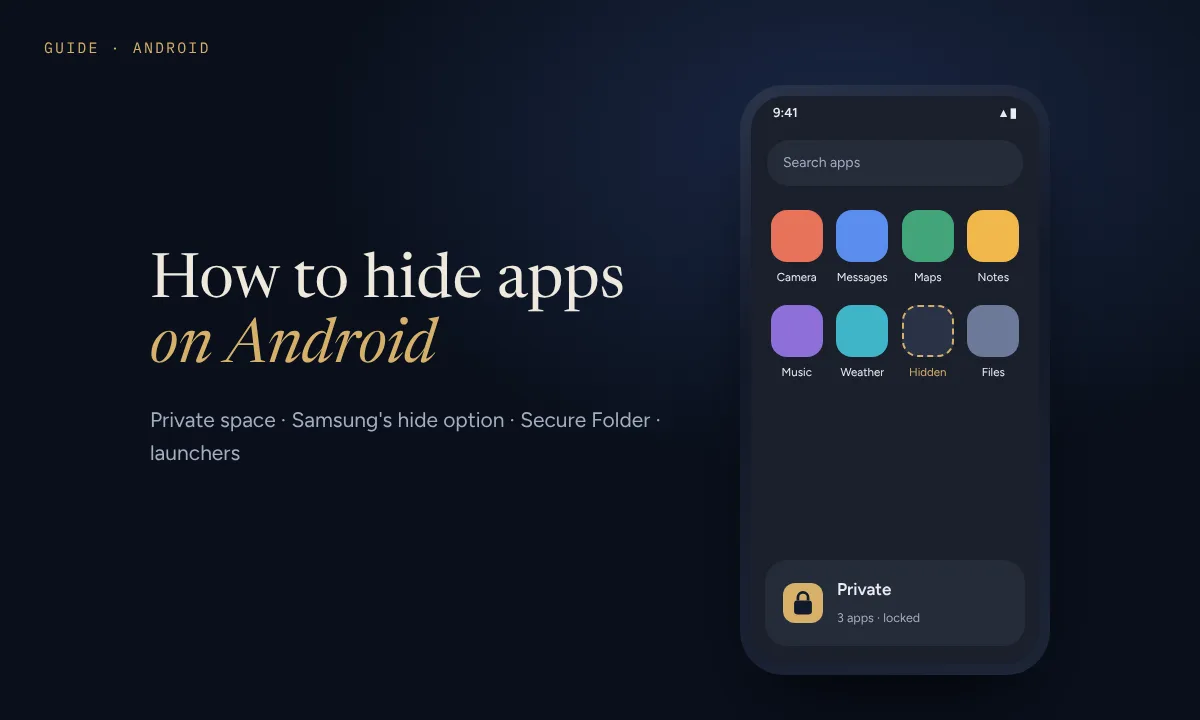
The five ways at a glance
Before you start, decide what you need. Hiding an icon stops casual scrolling, but anyone who opens Settings can still see the app. A locked space keeps the app, its data and its notifications out of reach until you unlock it.
| Method | Works on | Locked? | Best for |
|---|---|---|---|
| Private space | Android 15 and later (Pixel and many other phones) | Yes, with its own PIN or pattern | Apps nobody should open, even if they know your phone PIN |
| Samsung: Hide apps on Home and Apps screens | Samsung Galaxy | No | Tidying away icons quickly |
| Samsung Secure Folder | Samsung Galaxy | Yes, with its own PIN, pattern or password | A locked second set of apps on a Galaxy phone |
| A launcher or folder | Any Android phone | Usually no | Phones without a built-in option |
| Disabling an app | Preinstalled apps on any phone | No, the app stops working | Apps you never use but can't uninstall |
The video loads from YouTube only when you press play. Watch it on YouTube instead.
1. Private space (Android 15 and later)
Private space is Google's built-in answer to hiding apps. It creates a separate, locked area at the bottom of your app drawer. When it's locked, its apps disappear from the app drawer, recent apps and Settings, and they stop sending notifications. To check your version, go to Settings › About phone › Android version.
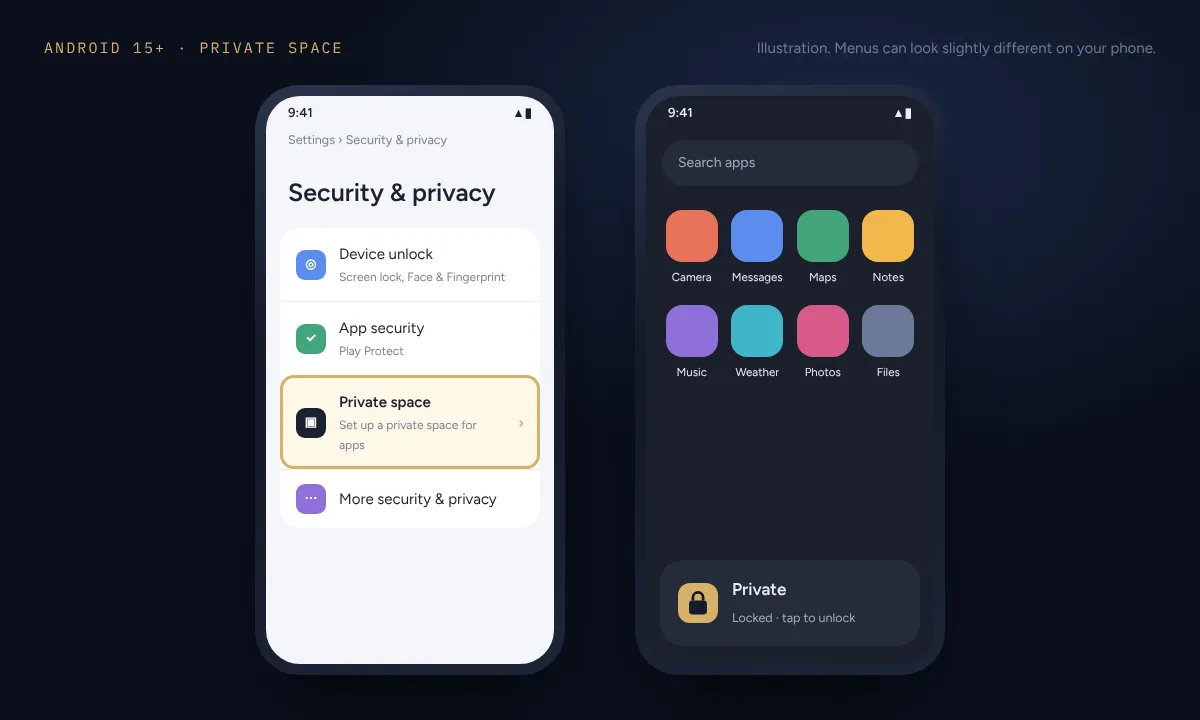
Set up Private space
- Open Settings and tap Security & privacy.
- Scroll down and tap Private space, then unlock with your screen lock.
- Tap Set up and sign in with a Google account. A separate account keeps the space's downloads and history apart from your main one.
- Choose Use separate lock and create a PIN, pattern or password that's different from your phone's. Otherwise, anyone who knows your screen lock can open the space.
Add apps to it
Apps aren't moved into Private space. You install a fresh copy inside it. Open the app drawer, scroll to the bottom, unlock Private and tap Install to open the Play Store inside the space. Sign in to the new copy, check it works, then uninstall the original from your main apps if you want it gone.
Lock it and hide it completely
- Lock it: tap the padlock at the bottom of the app drawer.
- Lock it automatically: open the space's settings (the gear icon) and choose Lock private space automatically: every time the phone locks, 5 minutes after the screen turns off, or only after a restart.
- Hide the space itself: in the same settings, tap Hide private space and turn on Hide private space when it's locked. To find it again, type private space into the app drawer's search bar and unlock it.
The catch: it's a separate profile, so you set apps up twice, and some phone makers haven't added it yet. Samsung phones use Secure Folder instead.
2. Samsung: hide apps on the Home and Apps screens
Galaxy phones can hide any app's icon in a few taps. The app stays installed and keeps working; it just isn't shown on your home screen or in the app drawer.
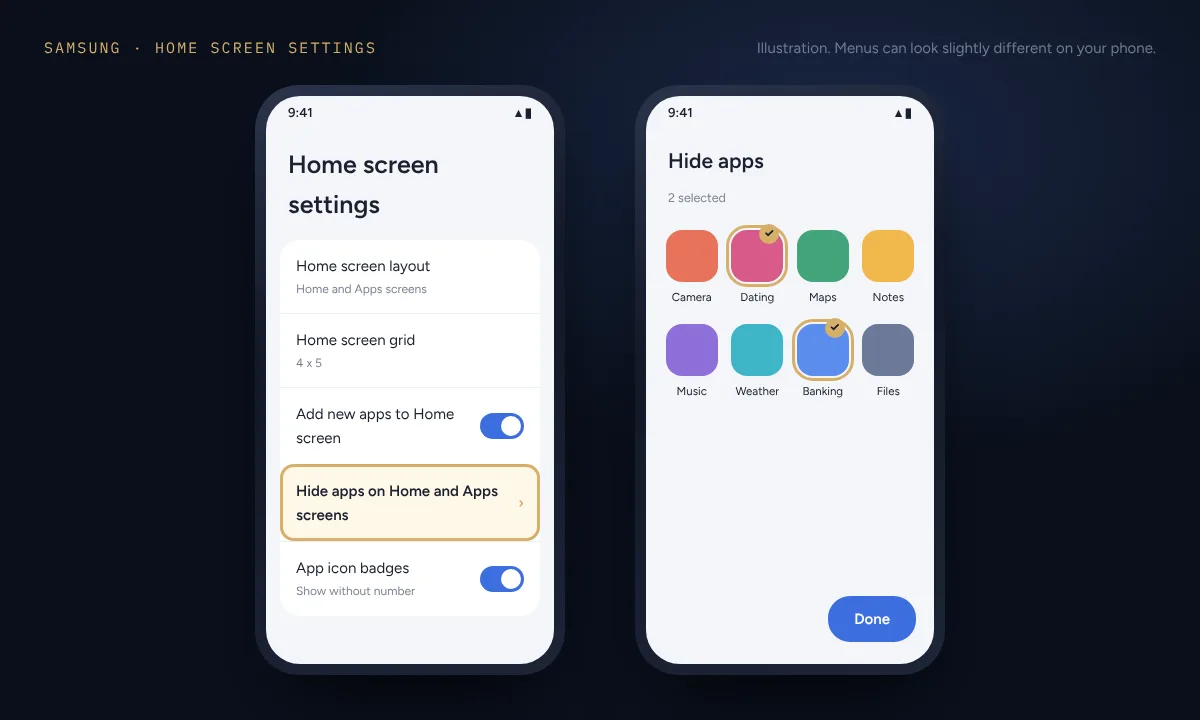
- Touch and hold an empty spot on the home screen, then tap Settings.
- Tap Hide apps on Home and Apps screens.
- Select the apps you want to hide and tap Done.
To unhide an app, go back to the same screen and tap it again to deselect it.
The catch: there's no lock. The app still appears in Settings › Apps, and anyone who knows the setting can undo it in seconds. Use it to keep icons out of sight, not to protect what's inside the app.
3. Samsung Secure Folder
Secure Folder is a separate, locked space on Galaxy phones with its own copies of apps. It can use a different lock from your screen lock, and you can hide its icon entirely.
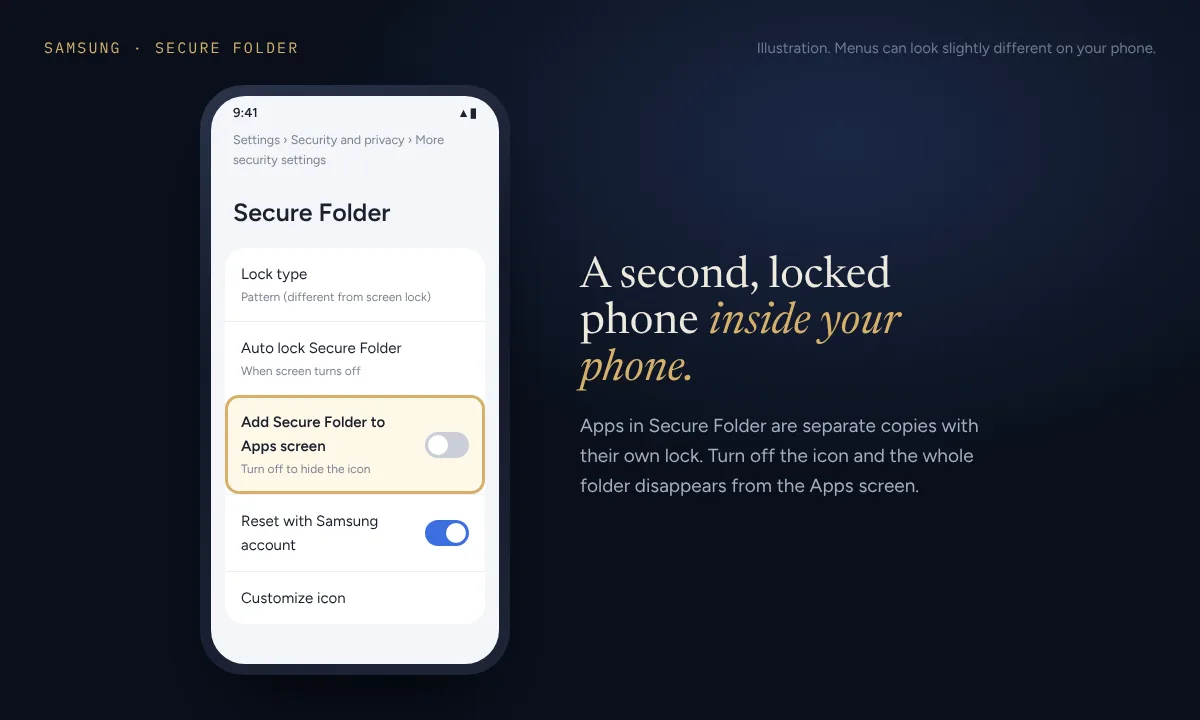
- Open Settings › Security and privacy › More security settings › Secure Folder.
- Tap Continue, sign in to your Samsung account if asked, and choose a PIN, pattern or password.
- Open Secure Folder, tap + (Add apps), pick the apps and tap Add.
- To hide the folder, open its settings and turn off Add Secure Folder to Apps screen. You can also hide or show it from the quick settings panel.
Turn on Reset with Samsung account when you set it up. Without it, Samsung says there's no way back in if you forget the lock. Also note that Secure Folder no longer supports backups. You can move it to a new Galaxy phone with Smart Switch, but if the folder is removed, what's inside goes with it.
4. Other phones: launchers and folders
If your phone has neither Private space nor Samsung's tools, you still have options:
- Check your phone's own settings. Many brands have their own hidden-apps feature. Search Settings for "hide", "hidden apps" or "private".
- Use a launcher that can hide apps. A launcher is the app that draws your home screen. Several in the Play Store can hide apps from the app drawer. Install one, then set it as default under Settings › Apps › Default apps › Home app.
- Use a folder. Remove the icon from the home screen and tuck the app inside a dull-looking folder in the app drawer. It's not hidden, just out of the way.
App lock apps from the Play Store take a different approach: they cover other apps with their own PIN screen. To do that, they need broad permissions to watch which apps you open, so choose one carefully and read its privacy policy.
5. Disable apps you never use
Preinstalled apps often can't be uninstalled, but most can be disabled. Go to Settings › Apps, tap the app and choose Disable. It disappears from the app drawer and stops running, but you can't use it until you enable it again. This is for clutter, not for apps you want to keep using in private.
How to find hidden apps on Android
Whether you're checking a child's phone or making sure your own setup works, hidden apps are easier to find than most people think.
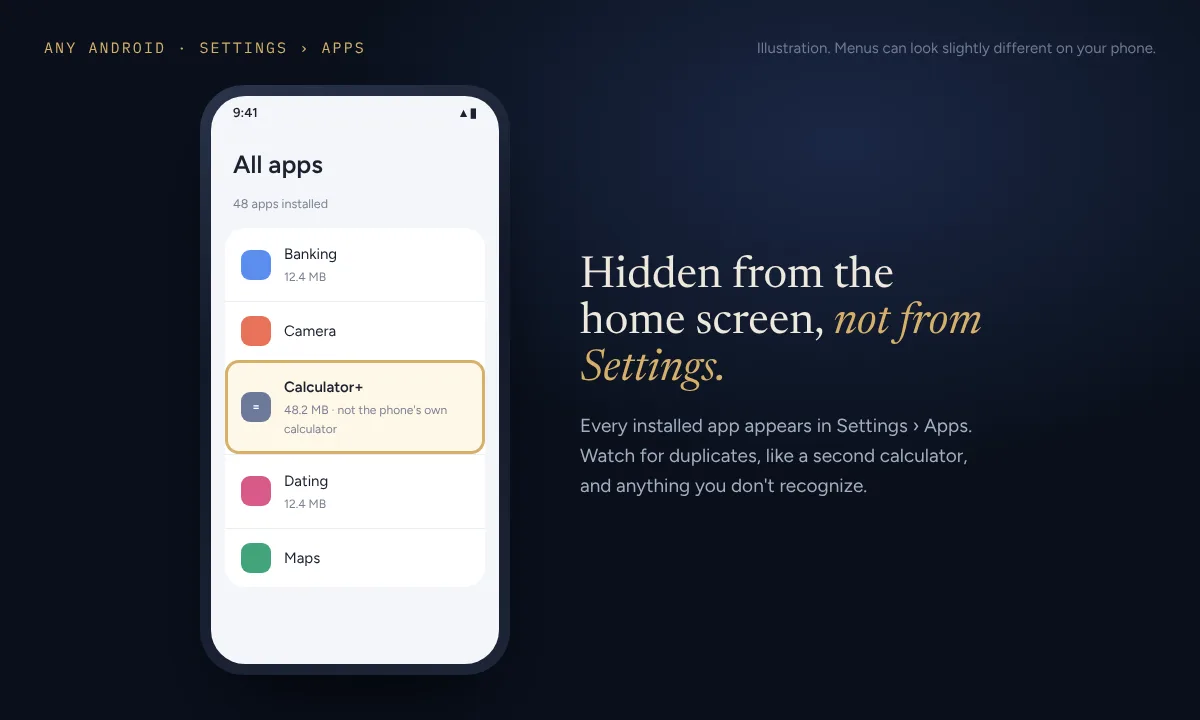
- Check the full app list. Open Settings › Apps and view all apps. Apps with hidden icons still appear here.
- Look at the bottom of the app drawer. A Private section means Private space is set up. If it's hidden, searching for "private space" will reveal it.
- On Samsung, check for Secure Folder in quick settings and in Settings › Security and privacy.
- Check the Play Store. Tap your profile picture, then Manage apps & device, then Manage to see what's installed from your account.
- Watch for disguises. Some vault apps look like a calculator or a utility. A second calculator you didn't install is worth a closer look.
Apps inside a locked Private space or Secure Folder won't show in these lists until it's unlocked, which is exactly why they're the strongest options.
How to unhide apps
- Private space: unlock it, then uninstall the copy inside or reinstall the app in your main apps. To remove the whole space, use its settings.
- Samsung hide option: go back to Hide apps on Home and Apps screens and deselect the app.
- Secure Folder: open it, touch and hold the app and uninstall it, or turn the folder's icon back on in its settings.
- Disabled apps: go to Settings › Apps, tap the app and choose Enable.
Hiding apps because of photos?
Often what you really want to protect is a set of photos, videos or documents, not an app. Hiding the gallery app doesn't hide the pictures: they're still on the phone, in Google Photos and in file managers. Lockar encrypts photos, videos and files on your phone and opens with its own pattern, so they stay unreadable even if someone gets into your apps. For the built-in options, see how to hide photos on Android.
Common questions
Can you hide apps on Android without disabling them?
Yes. Private space, Samsung's hide option, Secure Folder and many launchers all hide apps while leaving them installed and working. Disabling is only needed for preinstalled apps you never use.
Do hidden apps still send notifications?
It depends on the method. Apps in a locked Private space don't send notifications until you unlock it. Apps hidden only from the home screen and app drawer keep working normally, so their notifications can still appear.
Does hiding an app delete its data?
No. Hiding an icon leaves the app and its data alone. Private space and Secure Folder hold separate copies of apps, so moving an app into one means setting it up again inside. Deleting the space or folder deletes the apps and data inside it.
Can I hide apps on Android without anyone knowing?
Private space with Hide private space when it's locked turned on, or Secure Folder with its icon turned off, leaves very little to see. But someone who knows where to look can still tell a space exists, even if they can't open it.
Sources
- How to set up private space (Android)
- Use the Secure Folder on your Galaxy phone or tablet (Samsung US)
- How to use the Private Space feature on Android 15 (SlashGear)
- How to hide apps on Samsung Galaxy phones (Guiding Tech)
- Video: Android 15: how to set up Private Space (Doug Lynch is Explaining Android)